How to Enable Instagram Message Dark Mode
- 44 Views
- Hammad Ali
- July 15, 2026
- Software
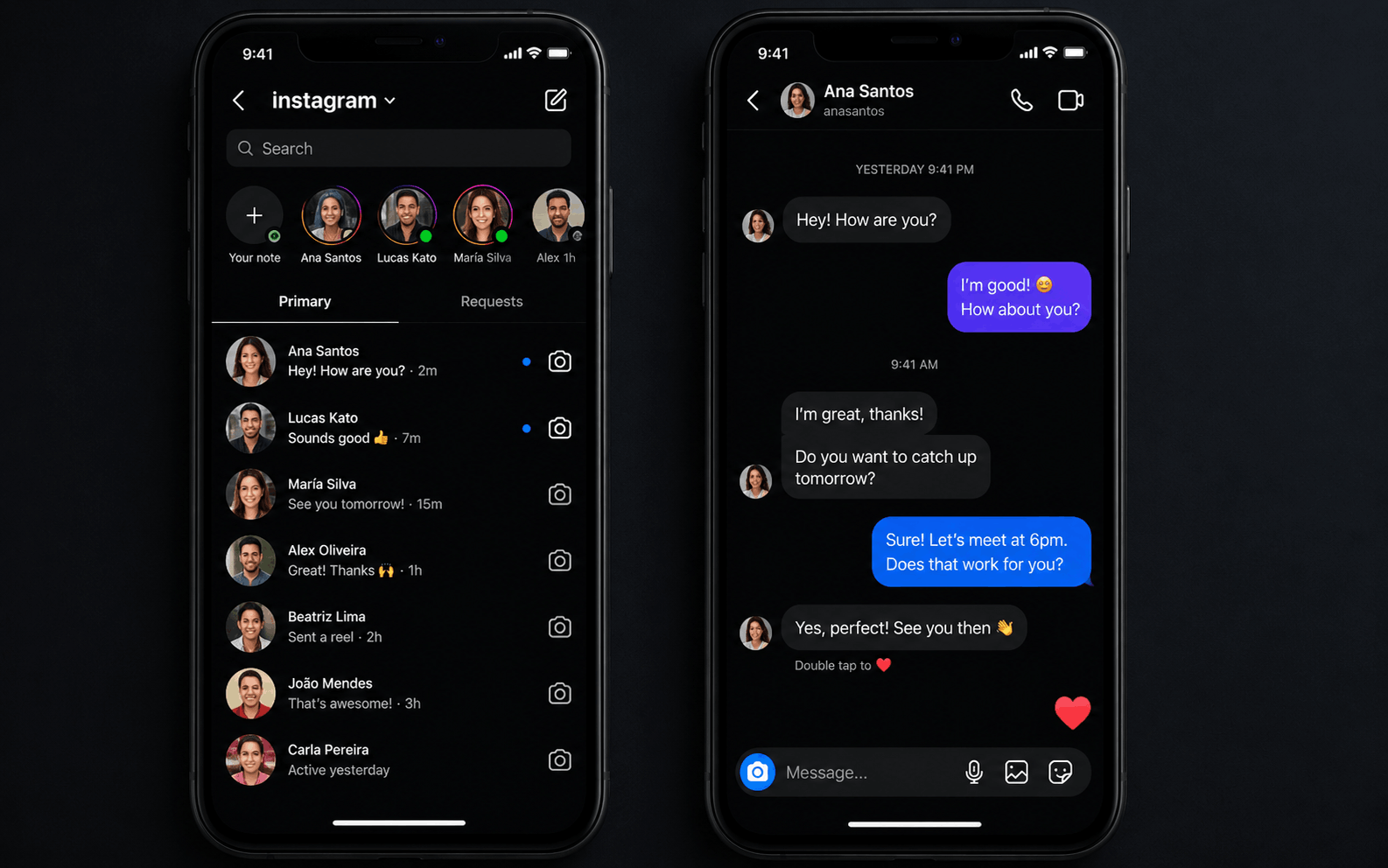
To enable Instagram message dark mode, turn on Dark Mode in your phone’s display settings (iOS or Android), or toggle it within the Instagram app itself under Settings > Display. Dark mode applies to DMs and the full app interface, reducing eye strain and battery use.
Dark mode has gone from novelty to necessity for millions of smartphone users. On Instagram, switching to Instagram message dark mode transforms the bright white DM interface into a sleek, dark-themed experience that’s easier on the eyes—especially at night. Whether you’re scrolling through messages late at night or just prefer a darker aesthetic, this guide covers everything you need to know. You’ll learn how to enable it on iPhone and Android, troubleshoot common issues, and get answers to the most frequently asked questions.
What Is Instagram Message Dark Mode and Why Does It Matter?
Instagram message dark mode is a display setting that changes the app’s color scheme from a white background to a dark gray or black one. This applies across the entire app interface, including your direct messages (DMs), feed, Stories, and Reels.
Dark mode matters for a few key reasons:
- Eye strain reduction: Bright white screens in low-light environments cause significant eye fatigue. Dark mode softens contrast and makes extended scrolling far more comfortable.
- Battery savings: OLED and AMOLED screens (found in most modern smartphones) consume less power displaying dark pixels. Enabling dark mode can meaningfully extend battery life.
- Aesthetic appeal: For many users, the dark interface simply looks more polished and modern.
Instagram doesn’t operate dark mode in isolation—it pulls the setting from your device’s system-wide display preference. Understanding how that relationship works is the key to getting it right.
How to Enable Instagram Message Dark Mode on iPhone
Apple introduced system-wide dark mode with iOS 13. Instagram respects this setting automatically, which means the simplest method is adjusting your iPhone display settings.
Method 1: Use iOS System Dark Mode
- Open the Settings app on your iPhone.
- Tap Display & Brightness.
- Select Dark under the Appearance section.
- Open Instagram—Instagram message dark mode will activate automatically.
This approach applies dark mode across your entire iPhone, not just Instagram.
Method 2: Use Control Center for Quick Toggling
- Swipe down from the top-right corner of your screen to open Control Center.
- Press and hold the Brightness slider.
- Tap the Dark Mode button at the bottom of the expanded slider.
This is the fastest way to switch between light and dark without digging into settings.
Method 3: Schedule Dark Mode on iPhone
If you only want dark mode at certain times—like after sunset—iOS lets you automate it:
- Go to Settings > Display & Brightness.
- Enable Automatic under Appearance.
- Choose Sunset to Sunrise or set a custom schedule.
Instagram will follow your schedule seamlessly, switching to Instagram message dark mode at the times you specify.
How to Enable Instagram Message Dark Mode on Android
Android’s process is slightly different, varying a little depending on your device manufacturer. Here’s how it works across most Android phones.
Method 1: Use Android System Dark Mode
- Open Settings on your Android device.
- Navigate to Display (or Display & Brightness on Samsung devices).
- Toggle on Dark Theme or Dark Mode.
- Launch Instagram—dark mode will apply automatically, including your DMs.
On Samsung Galaxy devices, you can also find this under Settings > Display > Dark Mode.
Method 2: Enable Dark Mode Directly in Instagram (Android)
Some Android users have access to a native dark mode toggle within the Instagram app itself:
- Open Instagram and tap your profile picture in the bottom-right corner.
- Tap the three horizontal lines (hamburger menu) in the top-right.
- Select Settings and privacy.
- Tap Display or Accessibility.
- Under Appearance, select Dark.
Not all Android users see this in-app option—it depends on your Instagram app version and whether the feature has rolled out to your account.
Method 3: Schedule Dark Mode on Android
- Go to Settings > Display > Dark Theme.
- Tap Schedule.
- Choose Sunset to Sunrise or set custom times.
This mirrors iOS’s automation and is a great option if you prefer dark mode only during evening hours.
Why Isn’t Instagram Dark Mode Working? Common Fixes
Even with the right settings in place, Instagram message dark mode sometimes fails to activate. Here are the most common causes and how to fix them.
Your Instagram App Is Outdated
Instagram regularly updates how it handles system themes. An outdated app may not correctly detect your device’s dark mode setting.
Fix: Open your App Store (iOS) or Google Play Store (Android), search for Instagram, and tap Update if one is available.
The App Cache Is Causing a Conflict
Cached data can interfere with display settings, causing the app to render incorrectly.
Fix on Android: Go to Settings > Apps > Instagram > Storage > Clear Cache. On iPhone, the quickest fix is to delete and reinstall the Instagram app.
Your Phone’s Battery Saver Mode Is Interfering
Some phones automatically override display settings when Battery Saver is active.
Fix: Disable Battery Saver mode temporarily, then check if Instagram message dark mode activates correctly.
Dark Mode Is Scheduled but Not Active Yet
If you’ve set a dark mode schedule, Instagram will only switch when the scheduled time arrives.
Fix: Manually toggle dark mode on in Display settings to confirm it works outside of the schedule.
The Feature Hasn’t Rolled Out to Your Account Yet
Instagram occasionally tests features with limited user groups before a full rollout.
Fix: Ensure your app is fully updated and wait for the feature to reach your region or account. There’s no workaround for a staged rollout.
How Instagram Message Dark Mode Compares Across Devices
Not all dark mode experiences are created equal—and the difference often comes down to your screen technology.
OLED and AMOLED screens (common in flagship Android phones and iPhone models from the iPhone X onward) display true blacks by turning off individual pixels. On these devices, Instagram’s dark mode looks especially rich, and battery savings are most significant—sometimes reducing screen power consumption by up to 30%, according to Google’s 2018 research on OLED displays.
LCD screens, found in older iPhones and budget Android devices, simulate darkness by dimming the backlight rather than switching pixels off. The effect looks similar but doesn’t deliver the same battery benefits.
In practical terms: if you use an OLED device, enabling Instagram message dark mode is one of the simplest ways to stretch your battery life without compromising your experience.
Tips for Getting the Most Out of Instagram Dark Mode
Once dark mode is running, a few small adjustments can make the experience even better.
Adjust screen brightness manually: Dark mode works best at lower brightness levels. Keeping your screen at 40–60% brightness in dark mode is generally the sweet spot for comfort.
Enable Night Shift or Blue Light Filter: Combine dark mode with your device’s blue light reduction feature (Night Shift on iPhone, Blue Light Filter on Android) for the most eye-friendly evening experience.
Use dark mode consistently across apps: Switching between dark and light apps repeatedly can feel jarring. Enabling system-wide dark mode creates a seamless, cohesive experience across Instagram, Messages, email, and beyond.
Check your wallpaper: A bright white or highly colorful wallpaper can undercut the benefits of dark mode. A darker wallpaper reinforces the aesthetic and further reduces eye strain.
The Bottom Line: Making Instagram Message Dark Mode Work for You
Instagram message dark mode is one of the most practical features you can activate on the app. The steps are straightforward—toggle on dark mode via your iPhone or Android system settings, or use Instagram’s in-app display option if available on your device. If something isn’t working, an app update or a quick cache clear typically resolves it.
The best approach depends on your phone: use scheduled dark mode if you want automatic switching at sunset, or enable it permanently if you prefer the dark aesthetic around the clock. Either way, your eyes—and possibly your battery—will thank you.
Frequently Asked Questions About Instagram Message Dark Mode
Does Instagram have its own dark mode setting, or does it use the phone’s setting?
Instagram primarily follows your device’s system-wide dark mode setting. Some Android users also have access to an in-app toggle under Settings > Display. iPhones do not currently offer an Instagram-specific dark mode switch—the app mirrors whatever the iOS Display settings are set to.
Does dark mode on Instagram save battery life?
Yes, on devices with OLED or AMOLED screens, dark mode reduces power consumption because dark pixels require less energy. On LCD screens, the battery savings are minimal. According to Google’s research, dark mode on OLED displays can reduce screen power use by up to 30%.
Why do my Instagram messages look white even after enabling dark mode?
This is usually caused by an outdated app version or a cached conflict. Update Instagram in your app store and clear the app cache (Android) or reinstall the app (iPhone). Also confirm your system dark mode is actually active—not just scheduled for later.
Can I use dark mode on Instagram without changing my entire phone to dark mode?
On some Android devices, yes—if Instagram’s in-app dark mode toggle is available under Settings > Display. On iPhone, there’s no way to isolate dark mode to just Instagram without changing the system-wide setting.
Does Instagram dark mode affect Stories and Reels too?
Yes. Enabling dark mode applies to the entire Instagram interface, including your feed, DMs, Stories viewer, Reels, and profile page. It’s an app-wide display change, not limited to messages.
Is Instagram message dark mode available in all countries?
Dark mode on Instagram is available globally, but in-app toggles (particularly on Android) may roll out gradually. If you don’t see the option yet, keep your app updated and it should appear in a future release.
Recent Posts
- The Rise of Agentic AI Companies: What They Are and Why They Matter
- What Features to Look for in Accounts Payable Automation Tools
- The Best AI Mode Tracking Tools And How to Pick the Right One
- The Warehouse Is Becoming Vietnam’s Most Strategic Business
- SaaS Accounting Software: The Smart Way to Manage Your Finances